
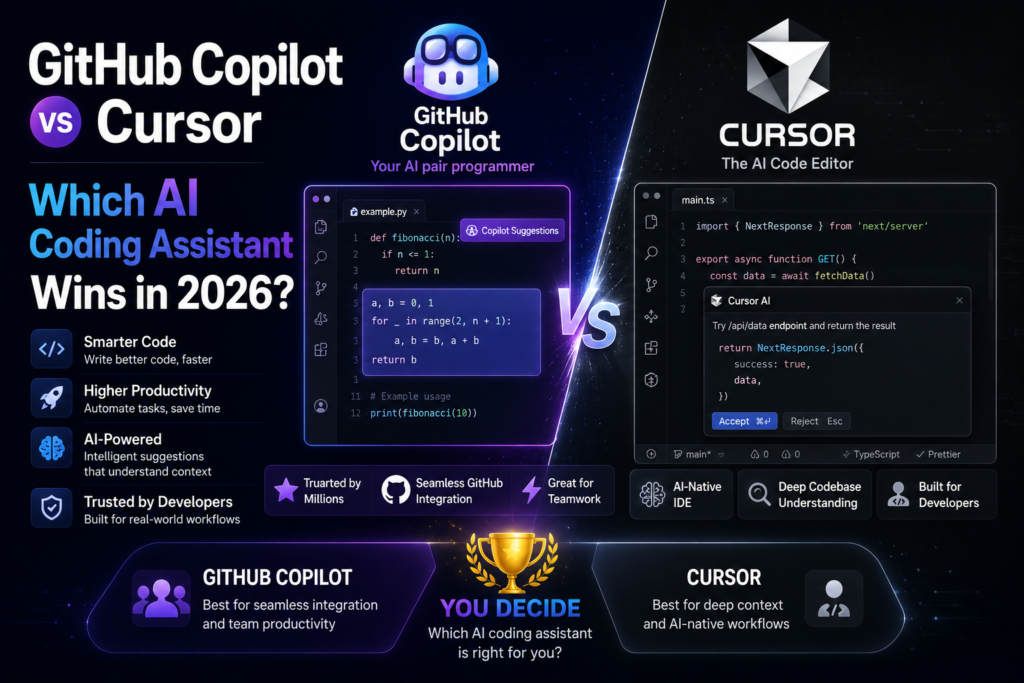
GitHub Copilot vs Cursor: Which AI Coding Assistant Wins in 2026?
Affiliate Disclosure: This post contains affiliate links. If you buy through them, AIGearTools may earn a commission at no extra cost to you. Our verdicts come from hands-on testing on real codebases, never from sponsorships.
Quick Answer (AI Overview)
Cursor wins for developers who want the deepest AI integration — its Tab autocomplete and Agent mode are faster and more context-aware. GitHub Copilot wins for teams already on GitHub, enterprise compliance, and value at $10/month. Cursor starts at $20/month with a free hobby tier; Copilot offers a free tier and broader IDE support including JetBrains.
The Most Important Tooling Decision Developers Make in 2026
The github copilot vs cursor debate has become the “vim vs emacs” of the AI era — except this time the choice measurably changes how fast you ship. Both tools promise the same thing: an AI pair programmer that completes your code, answers questions about your codebase, and increasingly writes entire features on command. They get there by very different routes.
GitHub Copilot is a plugin: it lives inside the editor you already use — VS Code, JetBrains, Neovim, Visual Studio — and leans on GitHub’s ecosystem. Cursor is the editor: a VS Code fork rebuilt around AI, where every feature assumes a model is sitting next to you. We used both daily for four weeks across three real projects (a Next.js SaaS app, a Python data pipeline, and a legacy PHP refactor) and tracked completion acceptance, task speed, and how often each tool’s output survived code review.
Copilot vs Cursor: Comparison Table
| Feature | GitHub Copilot | Cursor |
| Type | Extension for existing IDEs | Standalone AI-first editor (VS Code fork) |
| Free plan | Yes (2,000 completions/mo) | Yes (hobby tier, limited) |
| Starting price | $10/mo Pro | $20/mo Pro |
| Autocomplete | Strong | Best-in-class (Tab, multi-line, cross-file) |
| Agent mode | Yes (Copilot agent + coding agent on GitHub) | Yes (Agent with terminal + file edits) |
| Model choice | GPT, Claude, Gemini options | GPT, Claude, Gemini + own models |
| Codebase context | Good (repo indexing, @workspace) | Excellent (full-project indexing) |
| IDE support | VS Code, JetBrains, Neovim, Visual Studio, Xcode | Cursor editor only |
| Enterprise/compliance | Mature (IP indemnity, policy controls) | Growing (SOC 2, privacy mode) |
| Our rating | 4.7/5 | 4.7/5 |
Round 1: Autocomplete Quality
Autocomplete is the feature you touch a thousand times a day, and Cursor’s Tab is the best in the business. It does not just complete the current line — it predicts your next edit, sometimes several lines away, and jumps your cursor there. Rename a variable and Tab offers to update every usage in the function. In our tracking, Cursor’s multi-line suggestions were accepted noticeably more often than Copilot’s, especially mid-refactor.
Copilot’s completions are very good and have improved with next-edit suggestions of its own, but they remain more conservative: excellent at boilerplate, tests, and obvious continuations, less anticipatory during messy real-world editing.
Winner: Cursor, and it is the single biggest reason developers switch.
Round 2: Chat and Codebase Understanding
Both tools let you chat with your codebase, attach files, and ask “where is auth handled?” — and both now index whole repositories. Cursor’s advantage is depth of context: its @-mentions (files, folders, docs, web) and automatic project indexing meant fewer “as an AI, I don’t see that file” moments. Questions about our 60k-line Next.js app got accurate, multi-file answers more consistently.
Copilot counters with breadth: chat is available in your IDE, on github.com, in the CLI, and on mobile, and it can reference issues, PRs, and discussions — context Cursor simply does not have. If your team’s knowledge lives in GitHub PR threads, Copilot can use it.
Winner: Tie — Cursor for code context, Copilot for GitHub-ecosystem context.
Round 3: Agent Mode — Who Writes Features Better?
This is where 2026’s real battle is. Cursor’s Agent takes a task (“add rate limiting to all public API routes, with tests”), plans, edits multiple files, runs terminal commands, reads errors, and iterates until done — all inside the editor where you can watch and interrupt. On our test tasks it completed medium-complexity features end-to-end most reliably, and its diffs were easy to review before accepting.
Copilot’s agentic story is split: agent mode inside VS Code handles multi-file tasks similarly well, while the Copilot coding agent works asynchronously — assign it a GitHub issue and it opens a pull request while you do something else. That async workflow is genuinely different and brilliant for backlog burning, small fixes, and dependency bumps.
Winner: Cursor for interactive feature work; Copilot for fire-and-forget issue-to-PR automation.
Round 4: Pricing and Value
| Plan | GitHub Copilot | Cursor |
| Free | 2,000 completions + 50 premium requests/mo | Hobby tier, limited usage |
| Individual | Pro $10/mo · Pro+ $39/mo | Pro $20/mo · Ultra $200/mo |
| Teams/Business | Business $19/user/mo | Teams $40/user/mo |
| Enterprise | $39/user/mo | Custom |
| Students/OSS | Free Pro | — |
Copilot wins on price, full stop. $10/month — free for students and open-source maintainers — buys most of the experience, and the free tier is enough for hobbyists. Cursor’s $20 Pro is worth it if you live in the editor all day; heavy agent users can burn through usage allowances and feel pushed toward higher tiers. Teams should also note the gap: $19 vs $40 per seat adds up fast.
Winner: GitHub Copilot.
Round 5: Ecosystem, Lock-In, and Enterprise
Copilot fits into whatever you already use: JetBrains diehards, Neovim users, and Visual Studio shops can all adopt it without changing editors. Enterprise buyers get mature policy controls, audit logs, IP indemnification, and the comfort of Microsoft compliance machinery — the reason it remains the default at large companies.
Cursor demands you switch editors. Because it forks VS Code, your extensions, themes, and keybindings mostly migrate in one click, so the switching cost is lower than it sounds — but JetBrains users are out of luck, and some VS Code extensions lag behind. Its privacy mode (code never stored) and SOC 2 status have made it enterprise-viable, and its adoption inside startups is enormous, but procurement departments still find Copilot the easier yes.
Winner: GitHub Copilot.
Developer Experience: A Week in Each
Living in Cursor feels like the editor is leaning forward, anticipating you. The flow of Tab-Tab-Tab through a refactor is addictive, and reaching for Agent instead of Stack Overflow becomes second nature. The cost is occasional over-eagerness — suggestions arriving when you just want to think — though this is tunable.
Living in Copilot feels like your familiar editor got smarter without changing personality. Nothing about your setup breaks; the AI waits politely. The cost is that ceiling moments — cross-file predictions, deep project context — arrive less often. Pairing either tool with a chat assistant for architecture discussions works well; see our ChatGPT vs Claude comparison for which to keep in the second monitor, and our best AI tools for content creators roundup if you also produce docs and tutorials around your code.
Who Should Choose What?
Choose Cursor if you:
- Want the strongest autocomplete and interactive agent available
- Already use VS Code (migration takes minutes)
- Work in startups or solo projects where editor choice is yours
- Spend most of your day deep in one codebase
Choose GitHub Copilot if you:
- Use JetBrains, Neovim, or Visual Studio and will not switch
- Want the best value at $10/month — or qualify for free (students, OSS)
- Work at a company with compliance and procurement requirements
- Love the idea of assigning issues to an AI and reviewing PRs later
Honest power move: many developers run both — Copilot Free or Pro inside their IDE of record, Cursor for greenfield and heavy refactor sessions. At a combined $30/month, that is still cheaper than the time it saves.
How We Tested
Both assistants ran daily for four weeks across three codebases (TypeScript/Next.js ~60k LOC, Python data pipeline, legacy PHP). We measured suggestion acceptance rates, time-to-complete on ten matched feature tasks, agent success without human rescue, and how much AI-written code survived team code review unchanged. Both tools were tested on their latest versions and best available models in May 2026.
Switching to Cursor: A 30-Minute Migration Guide
If the verdict above points you to Cursor, the switch is genuinely painless — here is the exact path we used:
- Import your VS Code setup. On first launch, Cursor offers one-click import of extensions, themes, keybindings, and settings. In our migration, 100% of a 40-extension setup came across; everything worked except one niche extension with its own AI features (which Cursor replaces anyway).
- Index your main repository. Open your largest active project first and let Cursor finish indexing before judging it — codebase chat and Agent quality depend on a complete index.
- Retrain one habit: press Tab more. The biggest adjustment is psychological — Cursor’s Tab predicts your next edit, not just the next token, so let it finish multi-line thoughts before reflexively typing over it. Give it two days before deciding.
- Set Agent guardrails. In settings, review what Agent may do without asking (file edits vs. terminal commands). We recommend keeping terminal execution on manual approval for the first week, and always reading diffs before accepting.
- Enable Privacy Mode if your code is sensitive. One toggle ensures code is never stored or used for training — turn it on before opening any client or employer repository.
Total time: about 30 minutes, most of it indexing. Keep VS Code installed for a fallback week; in our team, nobody opened it again.
Getting More from Copilot: 5 Underused Features
Choosing Copilot? Most developers use a fraction of what $10/month buys:
- `@workspace` in chat grounds answers in your whole repository instead of the open file — the difference between generic and genuinely useful answers.
- Custom instructions (a `copilot-instructions.md` in your repo) teach Copilot your conventions: naming, error-handling patterns, preferred libraries. Five minutes of setup noticeably improves every suggestion after.
- Model switching lets you pick Claude or Gemini models for chat when GPT’s answer feels off — different models genuinely excel at different languages and tasks.
- The coding agent on github.com is the sleeper feature: label an issue, assign it to Copilot, and review the PR it opens. Perfect for dependency bumps, test coverage gaps, and small bugs that never reach the top of your list.
- Copilot in the CLI explains and composes shell commands — `gh copilot suggest “find files modified in the last 2 days over 10MB”` ends the man-page archaeology.
What About the Alternatives?
The github copilot vs cursor question has a growing third column. Windsurf offers a Cursor-like AI editor with an agent (Cascade) that some developers prefer for its automatic context handling. Claude Code brings agentic coding to the terminal and CI, and pairs well with either editor rather than replacing them. JetBrains AI Assistant is the native answer for IntelliJ loyalists, and Codeium’s free tier remains the best zero-budget autocomplete. Our take after testing: these alternatives are credible, but the Copilot–Cursor duopoly still offers the most polish, the largest communities, and the fastest improvement pace — which is why this comparison is the one that matters for most developers in 2026. We will cover the full field in our upcoming roundup of the best AI coding assistants.
Frequently Asked Questions
For autocomplete quality and interactive agent coding, yes — Cursor leads in 2026. Copilot is better on price ($10 vs $20), IDE flexibility, enterprise controls, and GitHub-native automation. The “better” tool depends on whether you will switch editors.
Yes. At $10/month — free for students and open-source maintainers — Copilot delivers most of the AI coding experience at half Cursor’s price, inside whatever editor you already use. For GitHub-centric teams, its issue-to-PR coding agent adds automation Cursor cannot match.
Yes, Cursor has a free hobby tier with limited usage — enough to evaluate Tab and chat, not enough for full-time work. Copilot’s free tier (2,000 completions/month) is similarly evaluation-grade.
No. Cursor is its own editor (a VS Code fork). JetBrains users who want AI assistance should choose GitHub Copilot or JetBrains’ own AI Assistant.
Copilot Free inside VS Code is the gentler start — standard editor, explanations on demand, no cost. Beginners should also be careful with agent modes: accepting large AI-written changes you do not understand slows learning.
Both offer controls: Copilot Business/Enterprise excludes your code from training and offers IP indemnity; Cursor’s Privacy Mode ensures code is not stored or trained on. On free/individual tiers, review settings — defaults vary.
No — but they are redefining the job. In our testing, both tools accelerated implementation dramatically while still requiring human judgment for architecture, security review, and understanding business requirements. The realistic risk in 2026 is not replacement; it is falling behind developers who ship twice as fast because they have made these assistants part of their daily workflow.
Final Verdict
A closing note on strategy before the scores: whichever assistant you choose, invest a week in learning its context features — custom instructions, repository indexing, and reference syntax. In our testing, a developer who configured context properly got better results from the “losing” tool than an unconfigured developer got from the “winner.” The setup hour is the highest-leverage hour in this entire comparison.
In the github copilot vs cursor fight, Cursor (4.7/5) is the better tool — faster autocomplete, deeper context, stronger interactive agent — while GitHub Copilot (4.7/5) is the better deal — half the price, every IDE, enterprise-ready, with a uniquely useful async coding agent. Our recommendation: solo developers and startups on VS Code should switch to Cursor; everyone else starts with Copilot Pro and revisits in six months, because this race is nowhere near finished. Both companies are shipping major updates monthly, model quality keeps climbing underneath both products, and the features that decided this verdict may be matched by the other side before the year is out — which is exactly why we retest and update this comparison regularly.
*Disclaimer: AIGearTools tests every product hands-on on real projects; results reflect our usage and may differ from yours. Some links are affiliate links — we may earn a commission at no extra cost to you, which never affects verdicts. Pricing and features verified May 2026 and subject to change; confirm on official sites.