

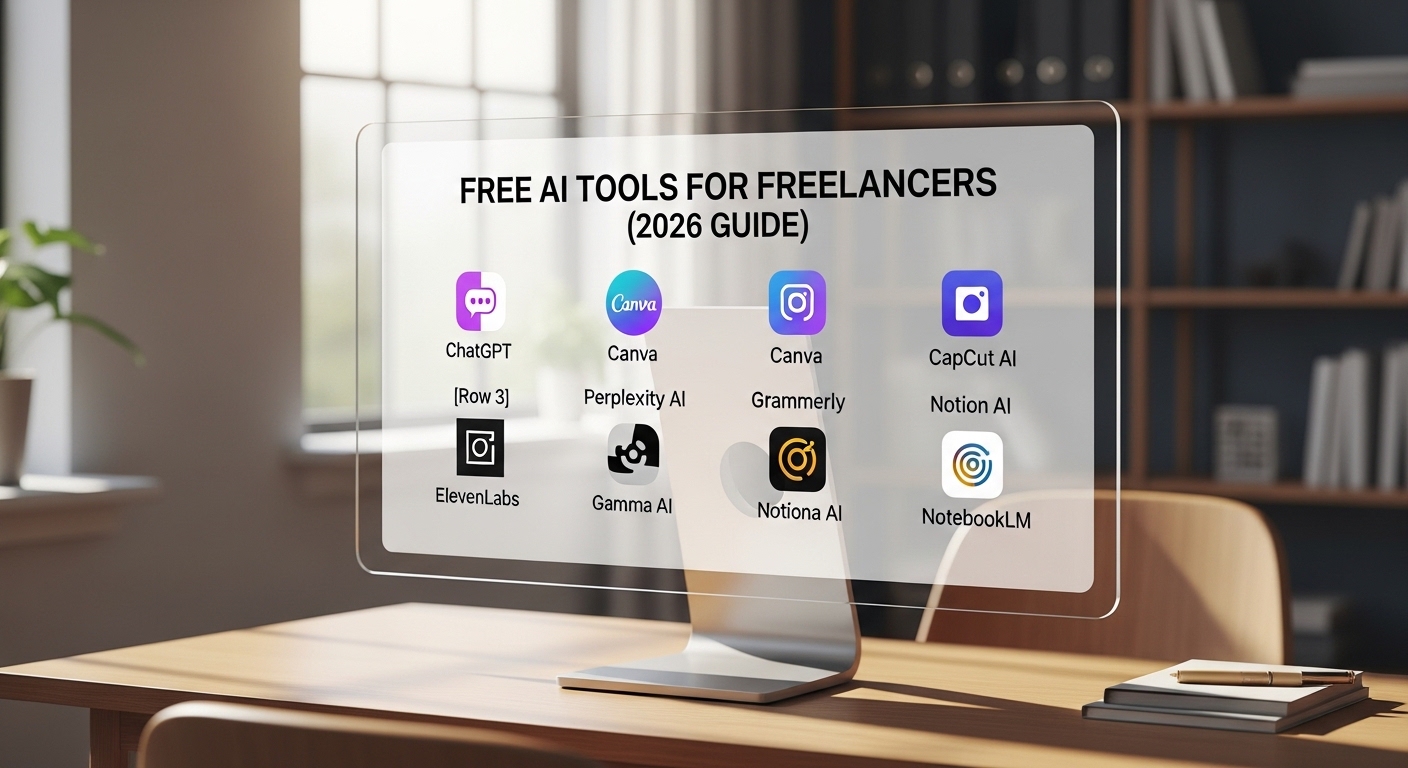
Imagine having a writing assistant, a graphic designer, a video editor, and a research analyst — all working for you 24/7, completely free. That is not a fantasy in 2026. That is AI.
The creator economy has grown into a $480 billion industry, and the freelancers winning the most clients are not necessarily the most talented — they are the ones using AI tools to work 3x faster and deliver 2x better results. The best part? Most of these tools have powerful free plans that are more than enough to get started.
In this guide, you will learn exactly how to use the top 8 free AI tools step by step — with practical tutorials written specifically for freelancers and content creators.
👤 Who Is This For?
This post is for you if you write blogs, manage social media, create videos, design graphics, or do any freelance creative work. No technical experience required.
What You Need Before You Start
Getting started with free AI tools requires almost nothing:
- A free Google or email account (to sign up for tools)
- A laptop or smartphone
- 30 minutes to set up your AI workflow
- Zero budget — everything in this guide is free
The 8 Best Free AI Tools at a Glance
| # | Tool | Best For | Free Limit | Affiliate Potential |
| 1 | ChatGPT | Writing, research, emails | Generous daily limit | ⭐⭐⭐⭐⭐ |
| 2 | Canva AI | Graphics, thumbnails, posts | 50 AI credits/month | ⭐⭐⭐⭐⭐ |
| 3 | CapCut AI | Video editing, reels | Fully free | ⭐⭐⭐⭐ |
| 4 | Perplexity | Research, fact-checking | Unlimited basic | ⭐⭐⭐⭐ |
| 5 | Grammarly | Proofreading, tone | Free grammar check | ⭐⭐⭐⭐ |
| 6 | Notion AI | Planning, content calendar | Limited AI responses | ⭐⭐⭐ |
| 7 | ElevenLabs | AI voiceovers | 10,000 chars/month | ⭐⭐⭐⭐ |
| 8 | Gamma AI | Presentations, decks | 10 decks free | ⭐⭐⭐ |
TOOL 1: ChatGPT — Your AI Writing Partner
| 1. ChatGPT — Best AI Writing Assistant |
| 🆓 Free Plan: Free with daily usage limits (GPT-4o access on free plan) |
| 🎯 Best For: Blog writing, email drafts, social captions, brainstorming, client proposals |
| 🚀 How to Use: Sign up at chat.openai.com → Start a new chat → Type your request clearly with context |
| 🔗 Link: https://chat.openai.com |
Step-by-Step: How to Write a Blog Post with ChatGPT for Free
- Go to chat.openai.com and create a free account
- Type this prompt: ‘I am a freelance content creator. Write a 1000-word SEO blog post about [your topic]. Include an introduction, 5 subheadings, and a conclusion. Tone: professional but conversational.’
- Review the output — edit any facts and add your personal experience
- Ask ChatGPT to ‘rewrite the introduction to be more engaging and hook the reader in the first sentence’
- Copy the final content into WordPress or Google Docs
| 💡 Pro Tip Always give ChatGPT context. The more specific your prompt, the better the output. Example: ‘I am a travel blogger writing for Indian audiences aged 25-35. Write…’ gives far better results than just ‘Write a travel blog.’ |
Power Use Cases for Freelancers
- Write client proposal emails in 60 seconds
- Generate 30 social media post ideas in one prompt
- Repurpose one blog post into 5 different formats
- Answer client briefs faster with structured outlines
TOOL 2: Canva AI — Design Like a Pro for Free
| 2. Canva AI — AI-Powered Design Platform |
| 🆓 Free Plan: Free plan with 50 Magic Studio AI credits/month + full Canva design library |
| 🎯 Best For: YouTube thumbnails, Instagram posts, blog banners, client presentations, brand kits |
| 🚀 How to Use: Go to canva.com → Click ‘Create a design’ → Choose your format → Use Magic Write or Text to Image |
| 🔗 Link: https://www.canva.com |
Step-by-Step: Create a YouTube Thumbnail with Canva AI
- Open Canva and search ‘YouTube Thumbnail’ in templates
- Pick a template that matches your content style
- Click on any text and rewrite it for your video title
- Use ‘Background Remover’ (free on mobile) to cut out your photo
- Use ‘Magic Write’ to generate a punchy headline if you’re stuck
- Download as PNG — done in under 10 minutes
| 💡 Pro Tip Canva’s free plan gives you access to thousands of templates. Create a Brand Kit (even on free plan) with your colors and fonts so every design looks consistent automatically. |
TOOL 3: CapCut AI — Edit Videos Without a Degree
| 3. CapCut AI — Free AI Video Editor |
| 🆓 Free Plan: Completely free — all core AI features included at no cost |
| 🎯 Best For: YouTube Shorts, Instagram Reels, TikTok, client video editing, talking head videos |
| 🚀 How to Use: Download CapCut app → Import your video → Use Auto Captions → Apply AI effects |
| 🔗 Link: https://www.capcut.com |
Step-by-Step: Turn a Raw Video into a Reel in 15 Minutes
- Download CapCut on your phone (free on iOS and Android)
- Import your raw footage
- Tap ‘Auto Captions’ — AI transcribes your speech in seconds
- Use ‘Remove Background’ for a clean talking-head look
- Add trending music from CapCut’s free library
- Export in 1080p and post directly to Instagram or YouTube
| 💡 Pro Tip CapCut’s ‘Auto Filler Word Removal’ feature cuts every ‘um’, ‘uh’, and awkward pause automatically. This alone saves 30–60 minutes of manual editing per video. |
TOOL 4: Perplexity AI — Research Any Topic Instantly
| 4. Perplexity AI — AI Research Assistant with Real-Time Sources |
| 🆓 Free Plan: Unlimited basic searches free — 5 Pro searches per day |
| 🎯 Best For: Blog research, fact-checking, competitor analysis, finding stats and citations |
| 🚀 How to Use: Go to perplexity.ai → Type your research question → Review cited sources |
| 🔗 Link: https://www.perplexity.ai |
How Freelancers Use Perplexity to Write Faster
Unlike ChatGPT, Perplexity pulls real-time information from the web and shows you the sources. This means you get accurate, up-to-date facts with citations — which is gold for blog writing.
- Ask: ‘What are the latest statistics on freelancer income in 2026?’ — get cited data instantly
- Ask: ‘What are the top questions people ask about [your topic]?’ — find blog post ideas
- Ask: ‘Summarize the top 5 articles about [competitor topic]’ — do competitive research in minutes
TOOL 5: Grammarly — Polish Every Word You Write
| 5. Grammarly — AI Writing & Grammar Assistant |
| 🆓 Free Plan: Free plan with grammar, spelling, and basic clarity suggestions |
| 🎯 Best For: Blog posts, client emails, proposals, social media captions, any written content |
| 🚀 How to Use: Install Grammarly browser extension → It automatically checks text anywhere you type |
| 🔗 Link: https://www.grammarly.com |
Why Every Freelancer Needs Grammarly
As a freelancer, your writing is your reputation. One typo in a client proposal can cost you a project. Grammarly acts as a real-time editor sitting beside you as you write — checking grammar, tone, clarity, and style simultaneously.
- Install the Chrome extension — it works inside Gmail, Google Docs, WordPress, and everywhere else
- The free plan catches 90% of critical errors
- Use the ‘Tone Detector’ to ensure your writing sounds professional, not casual, with clients
TOOL 6: Notion AI — Plan Your Entire Content Business
| 6. Notion AI — AI-Powered Workspace & Planner |
| 🆓 Free Plan: Free plan with limited AI responses per month |
| 🎯 Best For: Content calendar, client tracking, blog outlines, freelance project management |
| 🚀 How to Use: Go to notion.so → Create a free account → Use templates for content planning |
| 🔗 Link: https://www.notion.so |
The Freelancer Content Calendar Template (Free)
- Open Notion and create a new database called ‘Content Calendar’
- Add columns: Title, Platform, Status, Publish Date, Keywords, Notes
- Use Notion AI to ‘Generate 20 blog post ideas for a travel website targeting Indian audiences’
- Paste ideas into your calendar with target publish dates
- Every Monday, review your week and assign writing tasks to specific days
TOOL 7: ElevenLabs — Create AI Voiceovers for Free
| 7. ElevenLabs — AI Voice Generator |
| 🆓 Free Plan: 10,000 characters/month free — enough for 5-7 minutes of audio |
| 🎯 Best For: YouTube voiceovers, podcast intros, explainer videos, audio content |
| 🚀 How to Use: Go to elevenlabs.io → Choose a voice → Paste your script → Generate and download |
| 🔗 Link: https://www.elevenlabs.io |
If you create video content, ElevenLabs is a game-changer. You can type any script and get a professional-quality human-sounding voiceover in seconds — without recording your own voice. Perfect for explainer videos, YouTube intros, or course content.
| 🔥 Power Combo Use ElevenLabs + CapCut together: generate your voiceover in ElevenLabs, import it into CapCut, add visuals, and you have a fully produced video without ever speaking on camera. |
TOOL 8: Gamma AI — Create Stunning Presentations Instantly
| 8. Gamma AI — AI Presentation Builder |
| 🆓 Free Plan: 10 full presentations free — no design skills needed |
| 🎯 Best For: Client pitches, media kits, course slides, webinar decks, blog-to-deck conversions |
| 🚀 How to Use: Go to gamma.app → Click ‘Create with AI’ → Describe your topic → Customize and export |
| 🔗 Link: https://www.gamma.app |
How to Turn a Blog Post into a Presentation in 5 Minutes
- Copy the outline of any blog post you have written
- Go to gamma.app and click ‘Create new with AI’
- Paste your outline and describe your audience
- Gamma generates a full, beautifully designed deck automatically
- Customize colors, add your logo, and download as PDF or PowerPoint
This is particularly useful if you offer social media or content strategy services — you can turn client reports into professional presentations in minutes.
Your Complete Free AI Workflow as a Freelancer
Here is how to combine all 8 tools into one efficient daily workflow:
| Task | Tool | Time Saved |
| Research topic | Perplexity | Save 1–2 hours vs Google searching manually |
| Write first draft | ChatGPT | Save 2–3 hours of writing from scratch |
| Proofread & polish | Grammarly | Save 30–45 minutes of manual editing |
| Design graphics | Canva AI | Save 1–2 hours vs manual design |
| Edit video | CapCut AI | Save 1–3 hours of editing time |
| Add voiceover | ElevenLabs | Save recording + editing time |
| Plan next week | Notion AI | Save 1 hour of planning |
| Client pitch | Gamma AI | Save 2–3 hours making slides |
Total time saved per week: 8–14 hours. That is nearly two full extra working days — time you can use to take on more clients or create more content.
5 Mistakes Freelancers Make with Free AI Tools
- Using AI output without editing — Google can detect AI-only content; always add your voice
- Relying on one tool for everything — each tool has a specialty; combine them
- Ignoring prompting — vague prompts give vague results; be specific every time
- Not fact-checking — ChatGPT can hallucinate; always verify stats with Perplexity
- Skipping the free plan — most paid features are not needed for beginners; start free and upgrade only when you hit a real limit
Frequently Asked Questions
Yes. Every tool listed in this guide has a genuine free plan. The free tiers are enough for most freelancers starting out. You only need to upgrade when you hit volume limits — usually after your business is already earning.
Yes, but be transparent. Most tools allow commercial use on free plans. Grammarly, Canva, ChatGPT, and CapCut all permit using their output for client projects. Always check the individual tool’s terms of service.
No — but freelancers who use AI will replace those who don’t. AI handles repetitive tasks; your creativity, client relationships, and strategic thinking are irreplaceable.
About 2–3 hours for initial setup. After that, your daily workflow becomes significantly faster within the first week.
Final Thoughts
The freelancers and content creators thriving in 2026 are not working harder — they are working smarter. With ChatGPT, Canva AI, CapCut, Perplexity, Grammarly, Notion, ElevenLabs, and Gamma, you have a complete professional toolkit at zero cost.
Start with just two tools this week — ChatGPT for writing and Canva AI for design. Master those. Then add one new tool every two weeks until you have built your full AI-powered workflow.
The gap between creators who use AI and those who don’t is growing every month. Start today.